2026-05-05 – District of Clearwater to Test Voyent Alert on Thursday, May 7
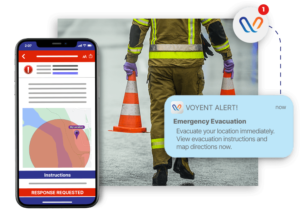
The District of Clearwater will be conducting a test of its Voyent Alert notification system on Thursday, May 7, 2026, at 1:30 p.m.
This is only a test. No action is required from the public.
The test is being held during Emergency Preparedness Week, which is a good opportunity for residents to review how they receive emergency information and take simple steps to prepare for emergencies such as wildfire, flooding, extended power outages, or other local hazards.
Residents may also notice other emergency notification tests taking place this week. The Province of British Columbia is scheduled to test the BC Emergency Alert system on Wednesday, May 6, 2026, at 1:55 p.m., which will be sent to compatible cellphones and interrupt radio and television broadcasts. The Thompson-Nicola Regional District has also announced a Voyent Alert test for TNRD Electoral Areas on Thursday, May 7, 2026, at 10:30 a.m.
The District of Clearwater’s Voyent Alert test is separate and is scheduled for 1:30 p.m. on Thursday, May 7.
Voyent Alert is used by the District to provide timely information to residents during emergencies and other important local events. Residents who have not yet registered are encouraged to download the free Voyent Alert app or register online through the District’s website here: https://www.districtofclearwater.com/voyent-alert/
Before the Test: Make Sure Voyent Alert Can Notify You
Some residents may not receive app notifications if the Voyent Alert app has not been opened recently, if notifications have been turned off, or if the phone has placed the app into a battery-saving or “sleeping” mode.
Before the test on Thursday, residents are encouraged to take a few minutes to check the following:
- Open the Voyent Alert app
Open the Voyent Alert app on your phone before the test to confirm it is still installed, active, and working.
- Check that notifications are turned on
Make sure notifications are enabled for Voyent Alert in your phone settings.
On iPhone:
Go to Settings > Notifications > Voyent Alert > Allow Notifications
On Android:
Go to Settings > Apps > Voyent Alert > Notifications and make sure notifications are allowed.
- Check battery or sleeping app settings
Some phones automatically limit apps that are not opened regularly. This can prevent important alerts from appearing.
For Samsung Android phones:
Go to Settings > Device Care or Battery and Device Care > Battery > Background usage limits > Never sleeping apps > Add app, then select Voyent Alert.
Also check that Voyent Alert is not listed under “Sleeping apps” or “Deep sleeping apps.”
For other Android phones:
Go to Settings > Apps > Voyent Alert > Battery and look for an option such as Unrestricted, Allow background activity, or Don’t optimize.
Menu names vary depending on phone model and software version.
- For iPhone users, check that the app has not been offloaded
Some iPhones may remove unused apps while keeping the icon on the screen. If Voyent Alert has been offloaded, it may need to be reinstalled and opened again.
Go to Settings > Apps > App Store and check the Offload Unused Apps setting.
Why This Matters
During an emergency, timely and accurate information can help residents make informed decisions and stay safe. Testing the system helps the District confirm that Voyent Alert is functioning as expected and gives residents an opportunity to make sure they are receiving alerts properly.
The District encourages all residents to register for Voyent Alert, review their emergency plans, and prepare an emergency kit or grab-and-go bag during Emergency Preparedness Week.
For more emergency preparedness information, visit PreparedBC.ca.